


How to Free Up Storage on Your Phone Without Deleting Apps (2025 Guide)
Running out of storage on your phone, but don’t want to delete your favorite apps? You’re not alone. With HD videos, high-res photos, and app data piling up daily, even phones with 128GB+ storage can feel cramped. The good news? There are smart, safe, and app-freeing methods to clear space—without removing what you love. This 2025 guide walks you through step-by-step ways to clean up your phone on both Android and iOS, while keeping all your apps intact.
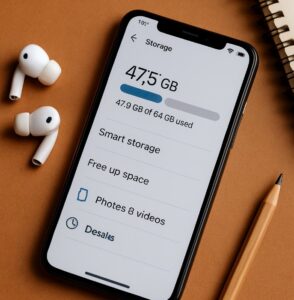
1. Clear Cached Data and Temporary Files
Many apps store temporary files that aren’t essential. These can be safely cleared to free up space:
On Android:
- Go to Settings > Storage
- Tap Cached data or Other apps
- Select an app and tap Clear cache
On iPhone:
iOS doesn’t have a universal cache clear option, but you can:
- Offload app data via Settings > General > iPhone Storage
- Select an app and choose Offload App (keeps data, removes the app itself)
2. Use Cloud Storage for Media
Photos and videos take up the most space. Sync your media to cloud services, then remove them from local storage:
- Google Photos: Free cloud backup with compression (Android & iOS)
- iCloud Photos: Automatically stores full-res photos in the cloud
- OneDrive / Dropbox: Cross-platform options with free space and auto-sync
After syncing, you can safely delete local media or use “free up space” options in the apps.
3. Delete Downloaded Files and Duplicates
Most users forget about files in the Downloads folder:
- Open the Files or My Files app
- Check “Downloads” or “Documents” and remove unnecessary files
- Use duplicate photo cleaner apps like Remo Duplicate Photos or Gemini Photos (iOS)
4. Use Built-in Storage Optimization Tools
On Android:
- Use Device Care or Files by Google to clean junk files and suggestions
On iPhone:
- Go to Settings > General > iPhone Storage
- Enable Recommendations such as offloading unused apps or large attachments
5. Manage Messaging Apps
Messaging apps like WhatsApp, Telegram, and iMessage often auto-download media:
- Open WhatsApp > Settings > Storage and Data > Manage Storage
- Disable auto-download for photos/videos
- Clear chats/media from large group conversations
6. Move Files to SD Card or External Storage
If your phone has expandable storage:
- Insert a microSD card and transfer photos/videos/music to it
- Go to Settings > Storage > Move media
Alternatively, use an external USB-C flash drive or wireless drive for temporary offloading.
7. Compress Photos and Videos
Compression saves space without major quality loss:
- Apps like Photo Compress 2.0 (Android) or Photo Shrinker (iOS)
- Use online tools to batch compress before re-uploading
8. Use AI Tools to Automate Cleanup
AI can scan, sort, and suggest what to remove. Try:
- ChatGPT: Use a cleanup checklist and optimize storage behavior
- Gemini: Auto-identifies media duplicates, storage-heavy apps, and rarely used files
These tools can help you build a personalized cleanup routine that fits your phone usage.
Watch: How to Free Up Storage on Your Phone Without Deleting Apps
AI Prompt to Build a Storage Cleanup Plan
Try this prompt on ChatGPT or Gemini:
Create a storage optimization plan for an Android phone with 64GB storage, no SD card, and lots of WhatsApp photos. I don’t want to delete apps. Include cloud options and cleanup tools.
chat.openai.com | gemini.google.com
Final Thoughts
You don’t need to delete your favorite apps to regain storage. By clearing cache, managing files smartly, and using cloud or AI tools, you can easily reclaim gigabytes of space. Make storage cleanup part of your digital routine and your phone will run faster, smoother, and stress-free.
Start today with one of the steps above and set a monthly reminder—your future self (and your phone) will thank you.
Related:
Clean up. Power up. Share this guide if it helped you reclaim your phone’s space!


