


How to Stop Apps from Draining Battery on iPhone (2025 Guide)
Is your iPhone battery draining too fast, even when you’re not using it? You’re not alone. Many iPhone users in 2025 are experiencing faster battery depletion due to background app activity, push notifications, and unnecessary location tracking.
In this complete guide, you’ll learn how to stop apps from draining battery on iPhone using built-in iOS tools and smart optimization tips — no third-party apps needed. Let’s extend your battery life the smart way!
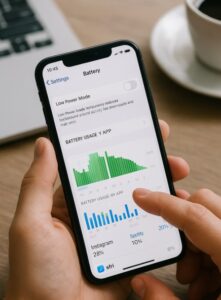
🔍 Step 1: Check Which Apps Are Using the Most Battery
Start by identifying the culprits:
- Go to Settings > Battery
- Scroll down to see a list of apps and their battery usage over the last 24 hours or 10 days
- Check for apps with high background activity
⚠️ If apps like Facebook, Instagram, or games are using more than 15–20% daily, they might be draining your battery even when idle.
 ⚙️ Step 2: Disable Background App Refresh
 ⚙️ Step 2: Disable Background App Refresh
Background App Refresh lets apps update content in the background. Most apps don’t need this enabled all the time.
- Go to Settings > General > Background App Refresh
- Select Off or Wi-Fi only
- Or turn it off for specific apps like social media or games
📍 Step 3: Turn Off Location Services for Unnecessary Apps
Apps using GPS constantly can significantly reduce your battery life.
- Go to Settings > Privacy & Security > Location Services
- Choose “While Using” instead of “Always”
- Disable location for apps that don’t need it
🔕 Step 4: Manage Push Notifications
Each notification wakes your screen and pings your system, which adds up.
- Go to Settings > Notifications
- Turn off alerts for apps you don’t need real-time updates from
- Use Scheduled Summary for batch notifications
🔋 Step 5: Enable Low Power Mode
Low Power Mode temporarily reduces background activity like downloads and mail fetch:
- Go to Settings > Battery > Low Power Mode
- Or ask Siri: “Turn on Low Power Mode”
✅ Bonus: Low Power Mode turns off automatically when you charge past 80%.
📱 Other Tips to Extend iPhone Battery Life
1. Turn Off Bluetooth & AirDrop When Not Needed
Swipe down to Control Center and toggle off Bluetooth or AirDrop to avoid constant scanning.
2. Update iOS Regularly
Apple often includes battery optimization improvements in updates:
- Go to Settings > General > Software Update
3. Use Dark Mode
iPhones with OLED screens (iPhone X and newer) consume less power in Dark Mode:
- Settings > Display & Brightness > Choose Dark
4. Avoid Live Wallpapers
Static wallpapers consume significantly less power. Switch to a still image in your settings.
🧠 Expert Tip: Use Screen Time to Monitor App Activity
Screen Time gives you detailed insight into how much time you’re spending on each app and when.
- Go to Settings > Screen Time > See All Activity
- Use this data to disable or limit the most time-consuming apps
📌 What to Do If Battery Still Drains Quickly
If you’ve tried all the tips above and your iPhone battery is still draining unusually fast, consider the following:
- Reset All Settings: Go to Settings > General > Transfer or Reset iPhone > Reset > Reset All Settings. This won’t delete your data but resets settings that may be draining power.
- Check for Battery Health: Under Settings > Battery > Battery Health & Charging, see if your battery’s maximum capacity is low. If it’s under 80%, replacement may be needed.
- Visit Apple Support: Hardware issues like overheating or faulty battery cells can’t be fixed via settings. Use the Apple Support app or visit a nearby store for a check-up.
🧪 Battery Myths: Busted!
- ❌ “You must close all apps from the app switcher to save battery.”
Wrong — iOS automatically freezes background apps. Manually killing them can actually use more energy when reopening. - ❌ “Charging your iPhone overnight damages the battery.”
No — modern iPhones stop charging at 100% and use Smart Charging to protect battery health. - ❌ “Using Low Power Mode all the time is bad.”
Nope — it’s a helpful tool and completely safe to use daily.
✅ Summary: Extend Battery Life with Smart Habits
Stopping apps from draining your iPhone battery doesn’t require drastic steps — just smart tweaks. By limiting background activity, disabling unnecessary notifications and location access, and enabling Low Power Mode, you can enjoy longer battery life without sacrificing functionality.
Regular updates, a good charging routine, and awareness of battery usage go a long way. And if you need a digital assistant to guide you, AI tools like ChatGPT or Gemini are just a tap away.
🧡 Thanks for reading! For more iPhone tips and mobile fixes, browse our Mobile & App Fixes section.
📚 Related Posts You May Like
- How to Fix Apps That Keep Crashing on Android (2025 Guide)
- How to Free Up Storage on Your Phone Without Deleting Apps
- How to Boost Android Performance Easily
🤖 Use ChatGPT or Gemini for Smart iPhone Maintenance
AI tools like ChatGPT or Gemini can help analyze your habits, recommend app limits, and even automate reminders for battery care tips tailored to your phone usage!


